Template Development
How to create custom video templates.
Template Introduction
Video templates use HTML to define the layout and style of video frames. Pixelle-Video provides multiple preset templates covering different video dimensions and style requirements.
Built-in Template Preview
Portrait Templates (1080x1920)
Suitable for TikTok, Kuaishou, Xiaohongshu, and other short video platforms.
-
static_default
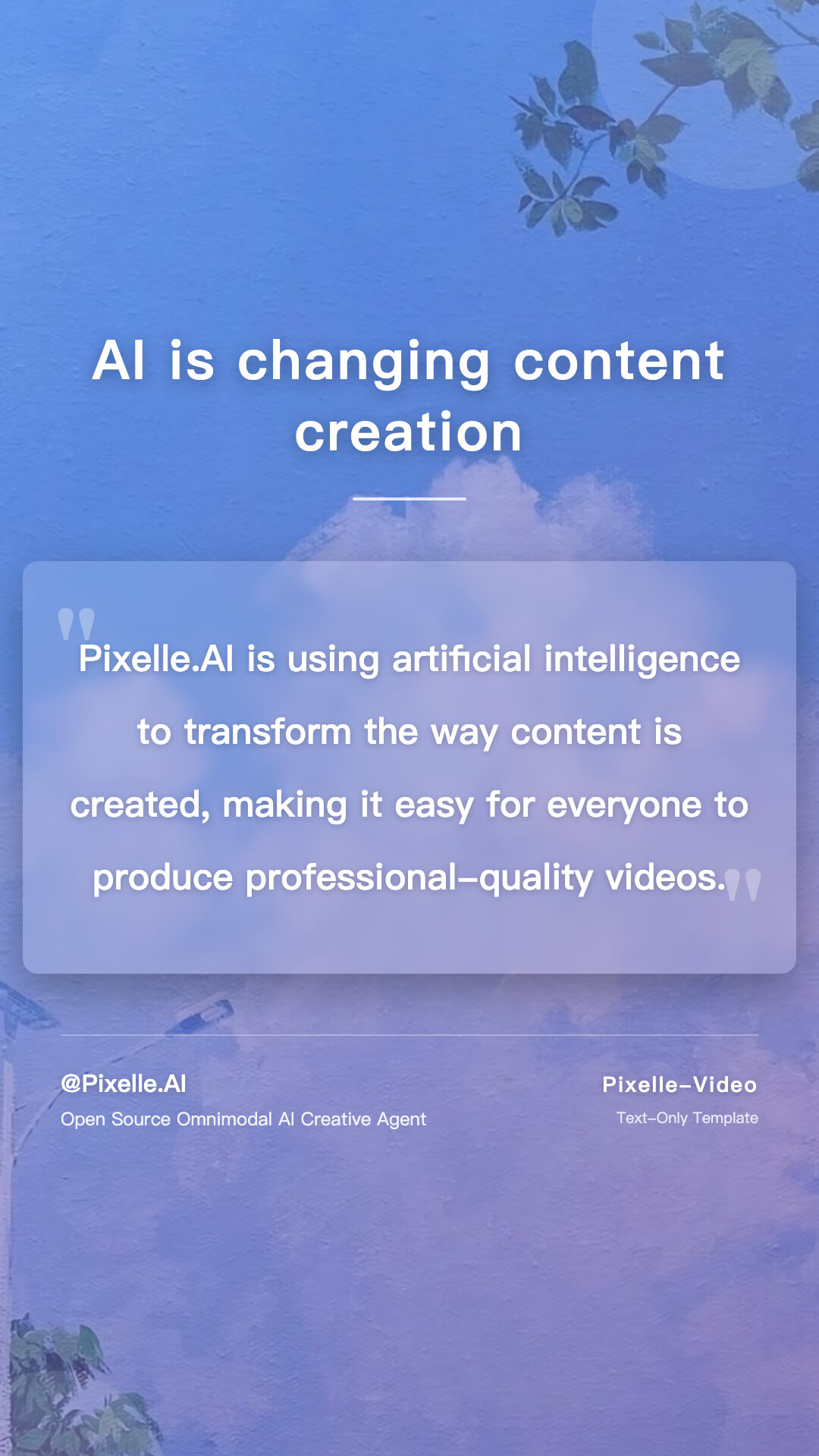
Default static template
-
static_excerpt
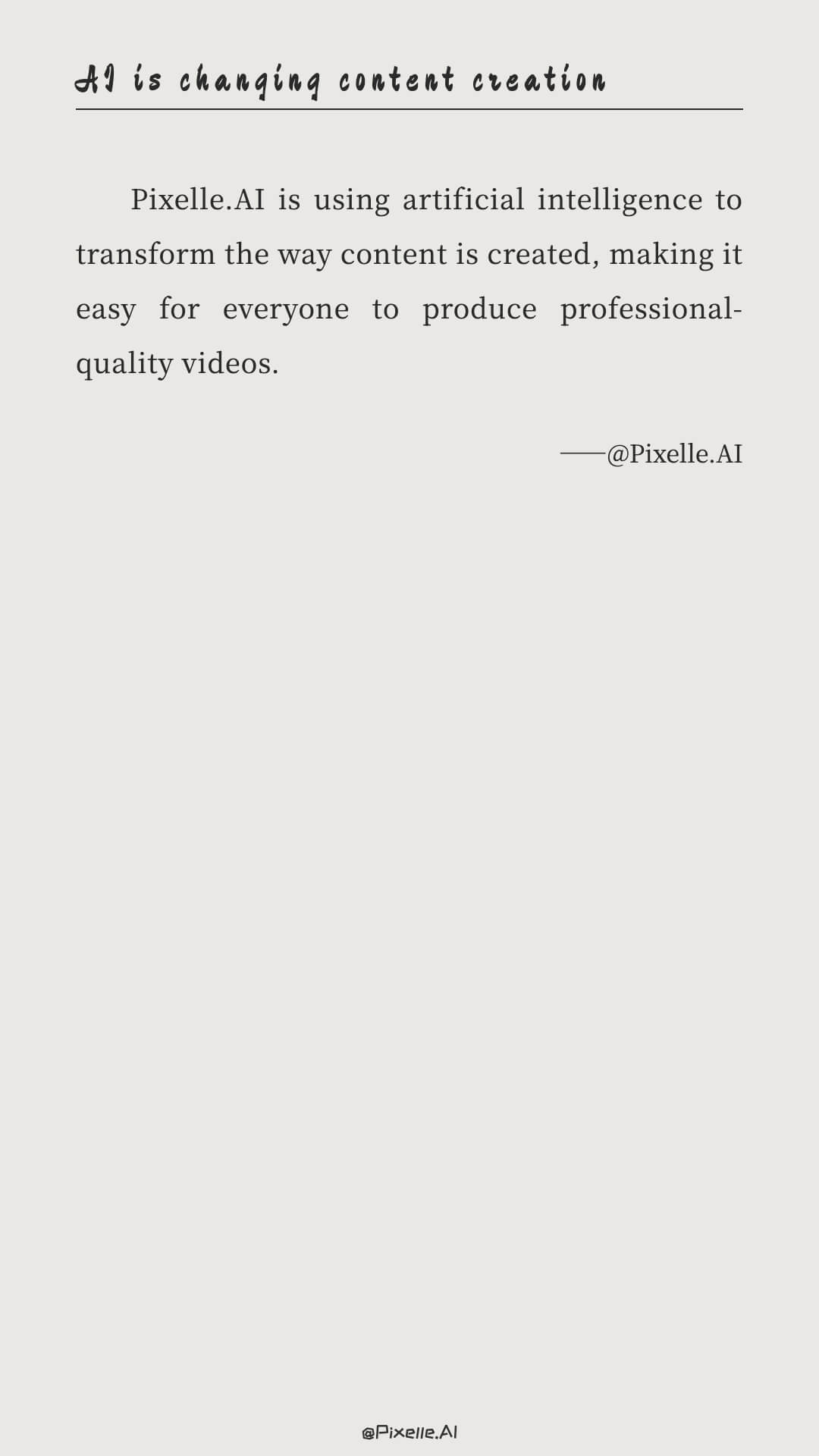
Text excerpt static template
-
Blur Card
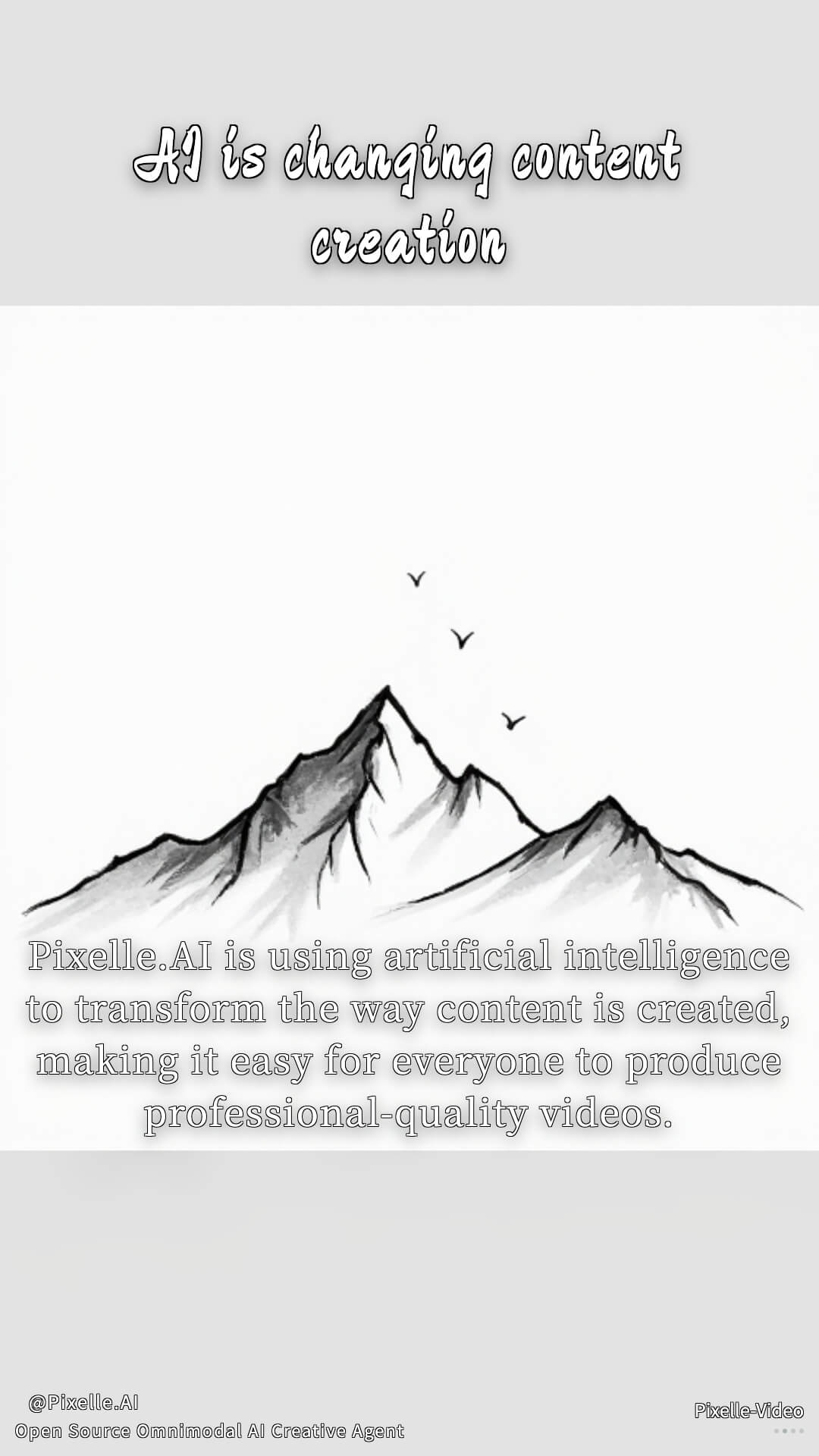
Blurred background card style, suitable for graphic content display
-
Cartoon
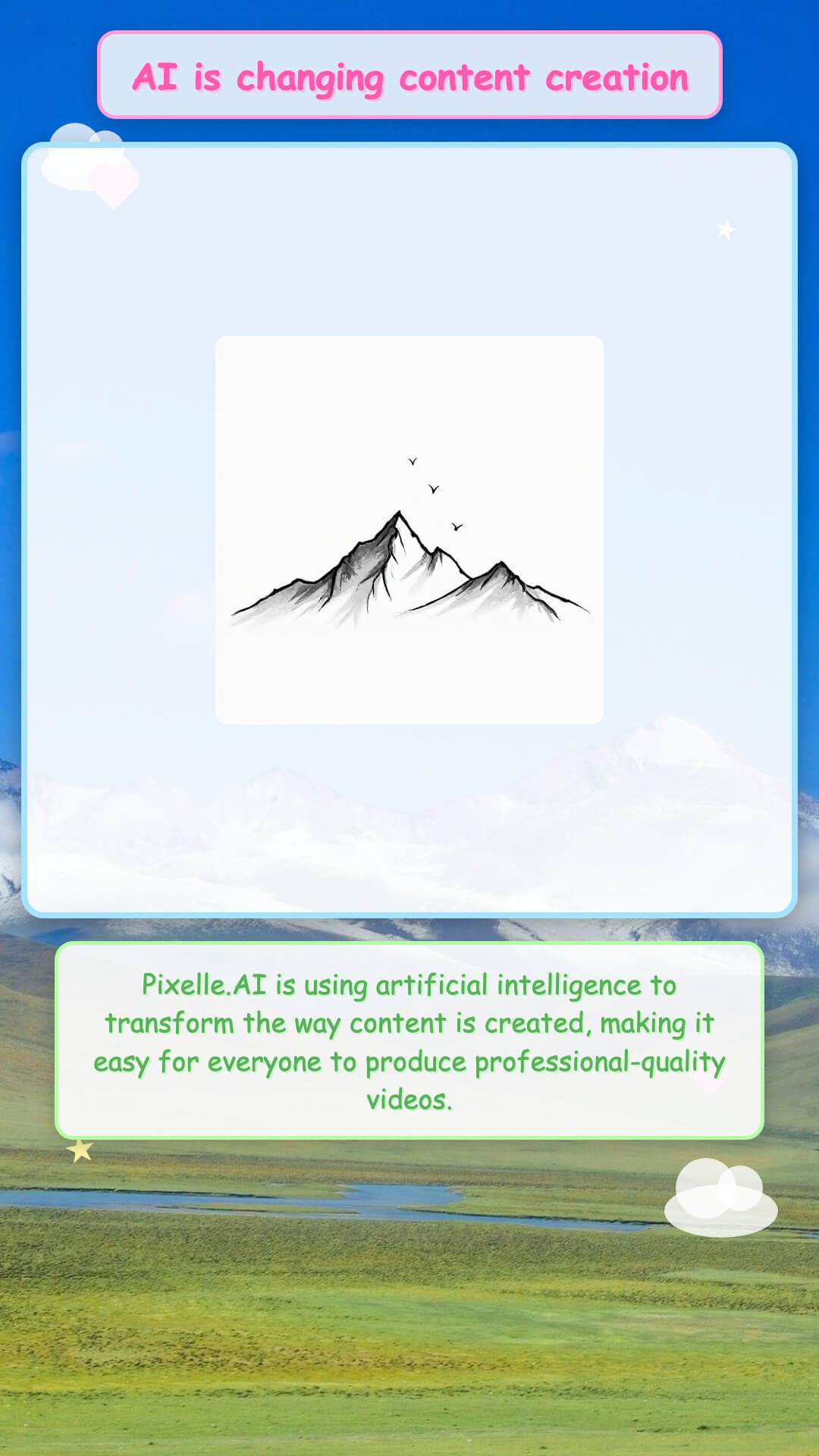
Cartoon style, suitable for light and lively content
-
Default
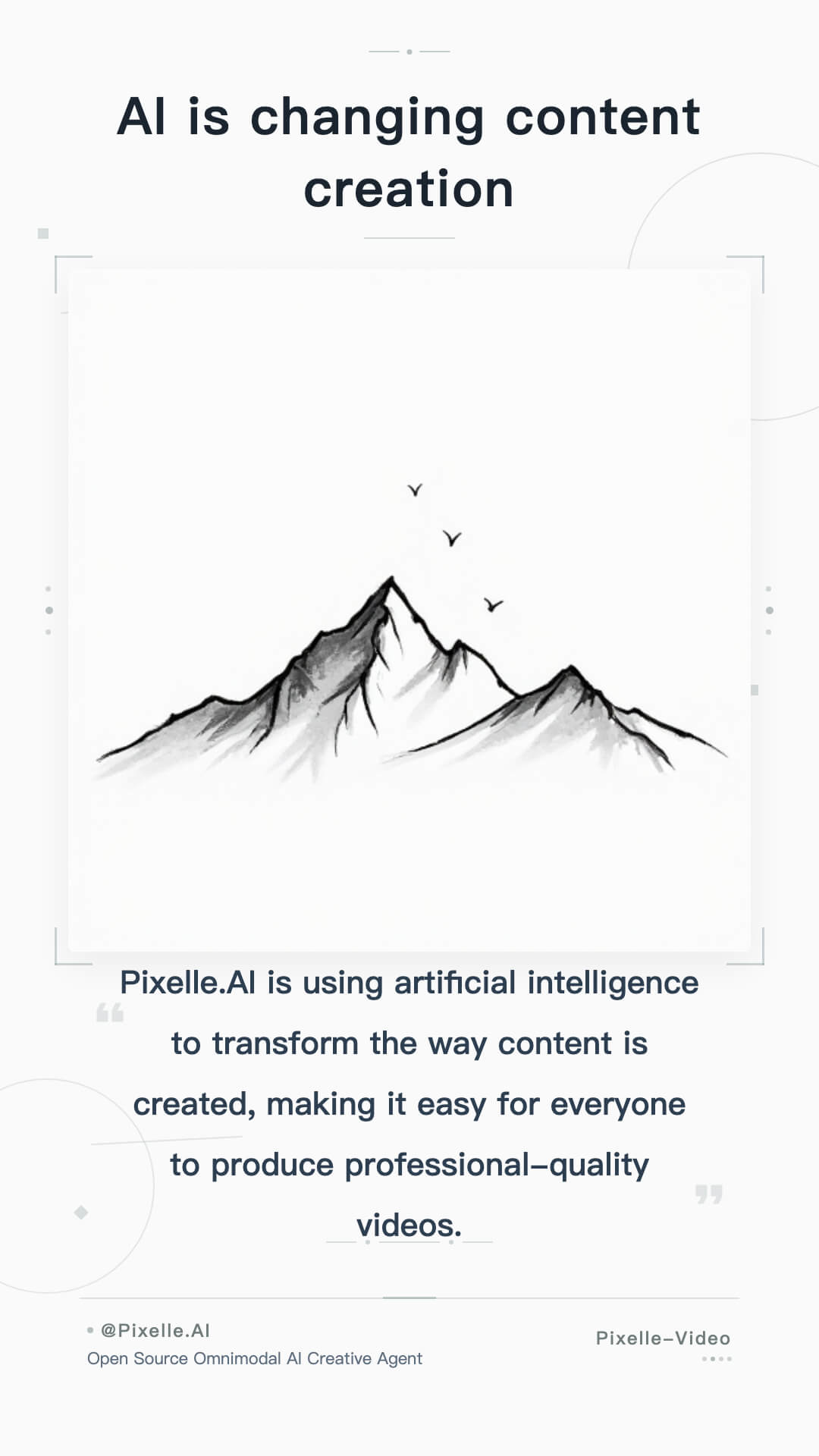
Default template, simple and versatile
-
Elegant
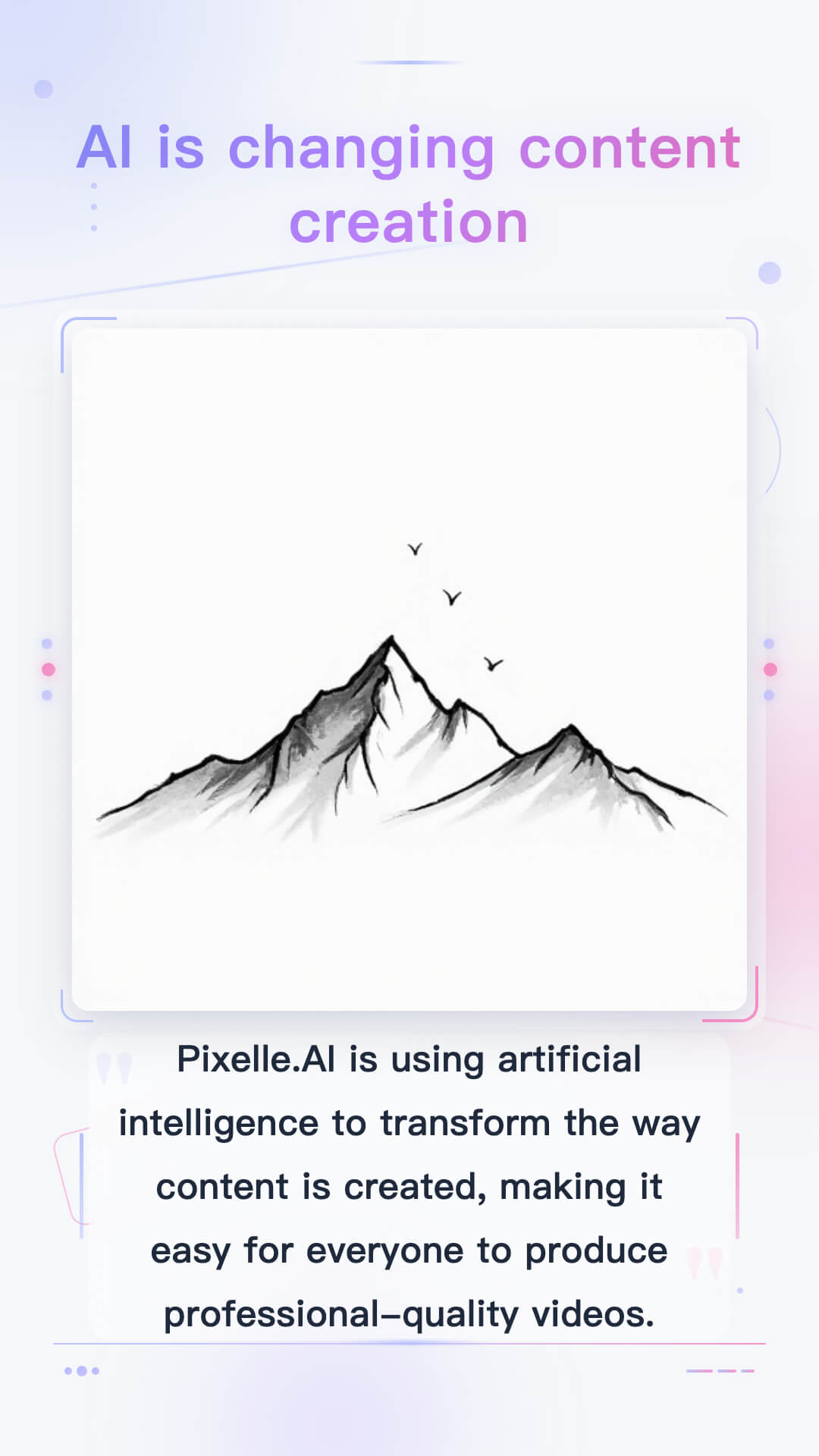
Elegant style, suitable for artistic and intellectual content
-
Fashion Vintage
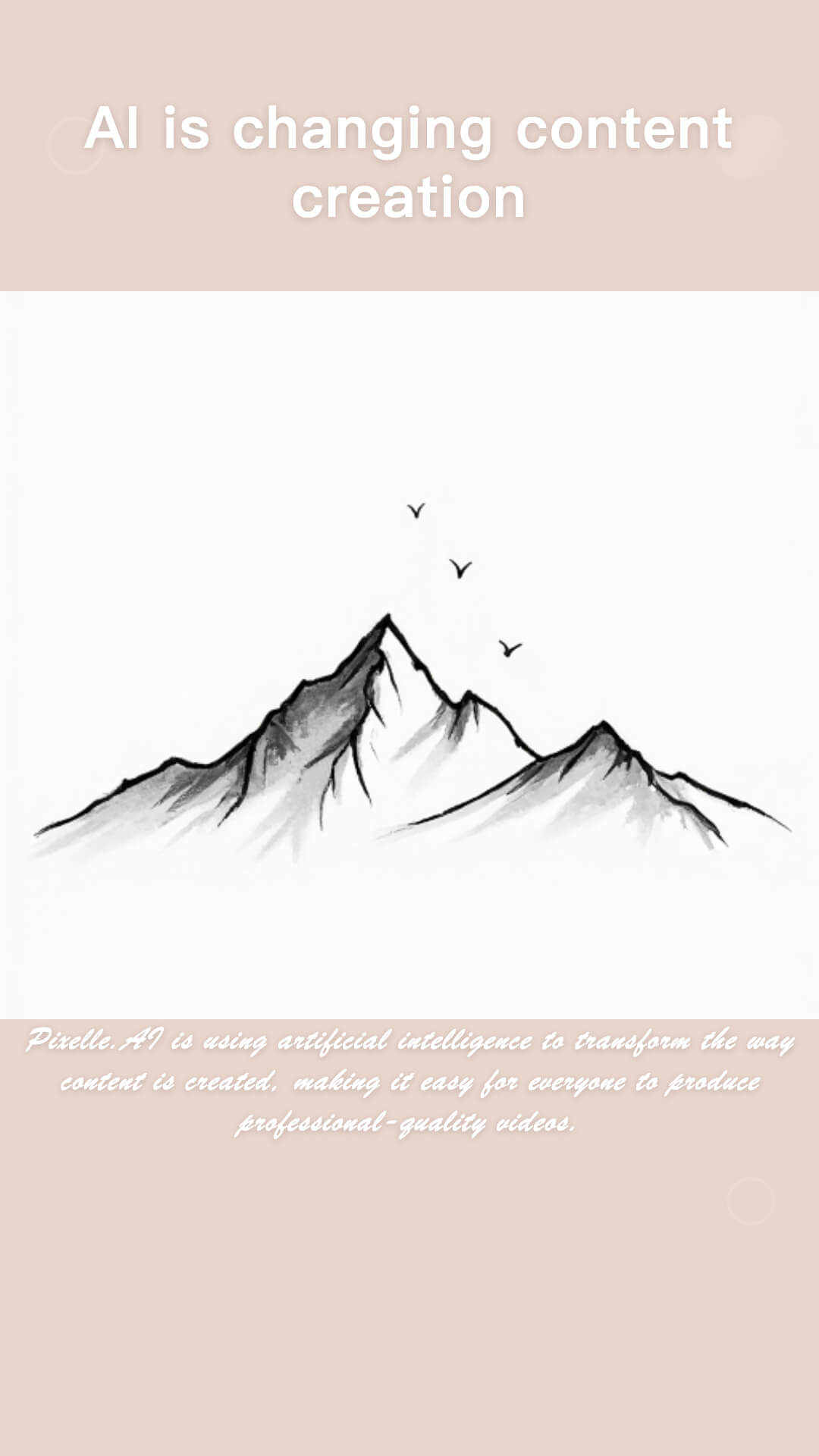
Retro fashion style, suitable for nostalgic themes
-
Life Insights
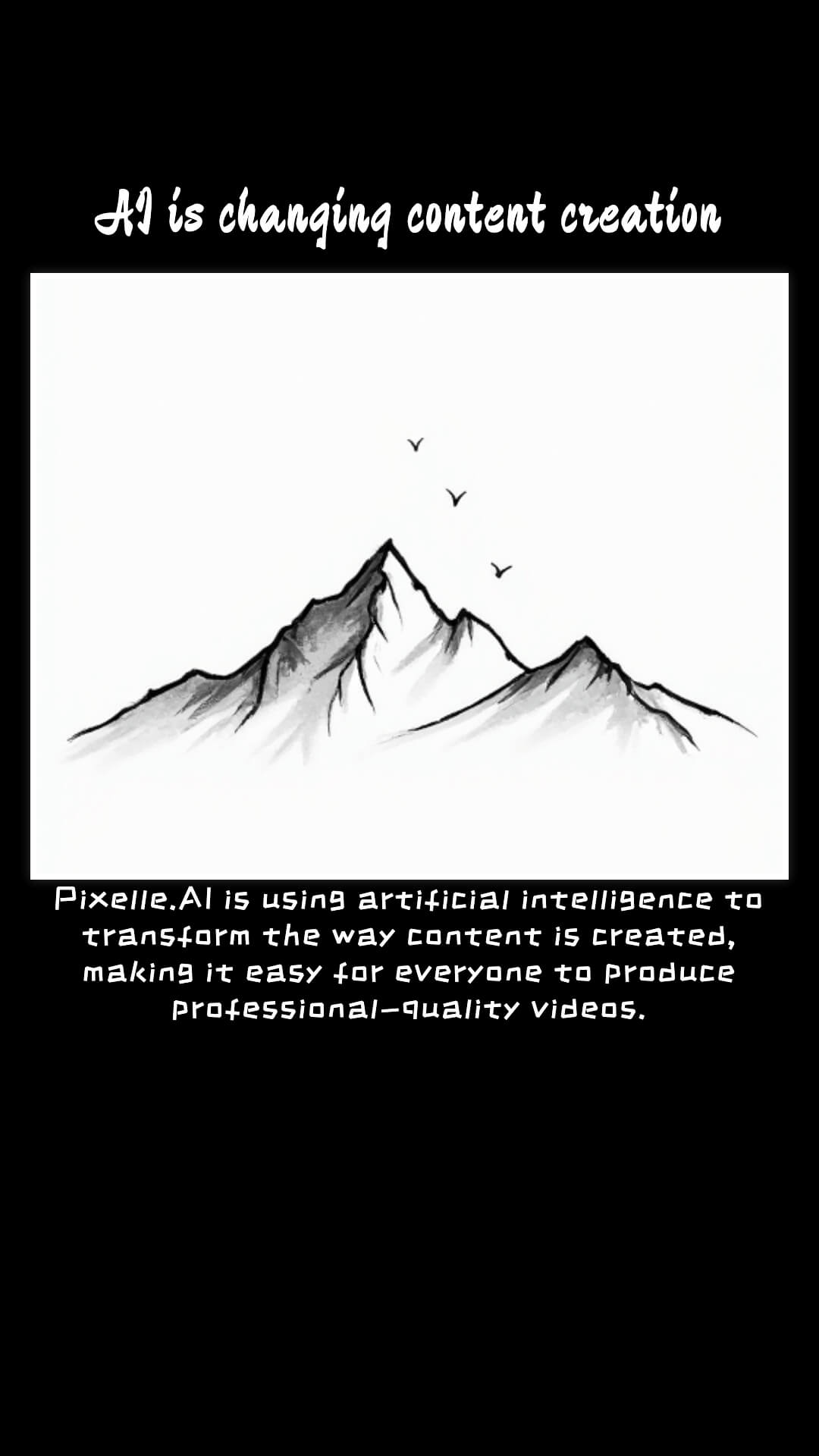
Life insight style, suitable for inspirational content
-
Modern
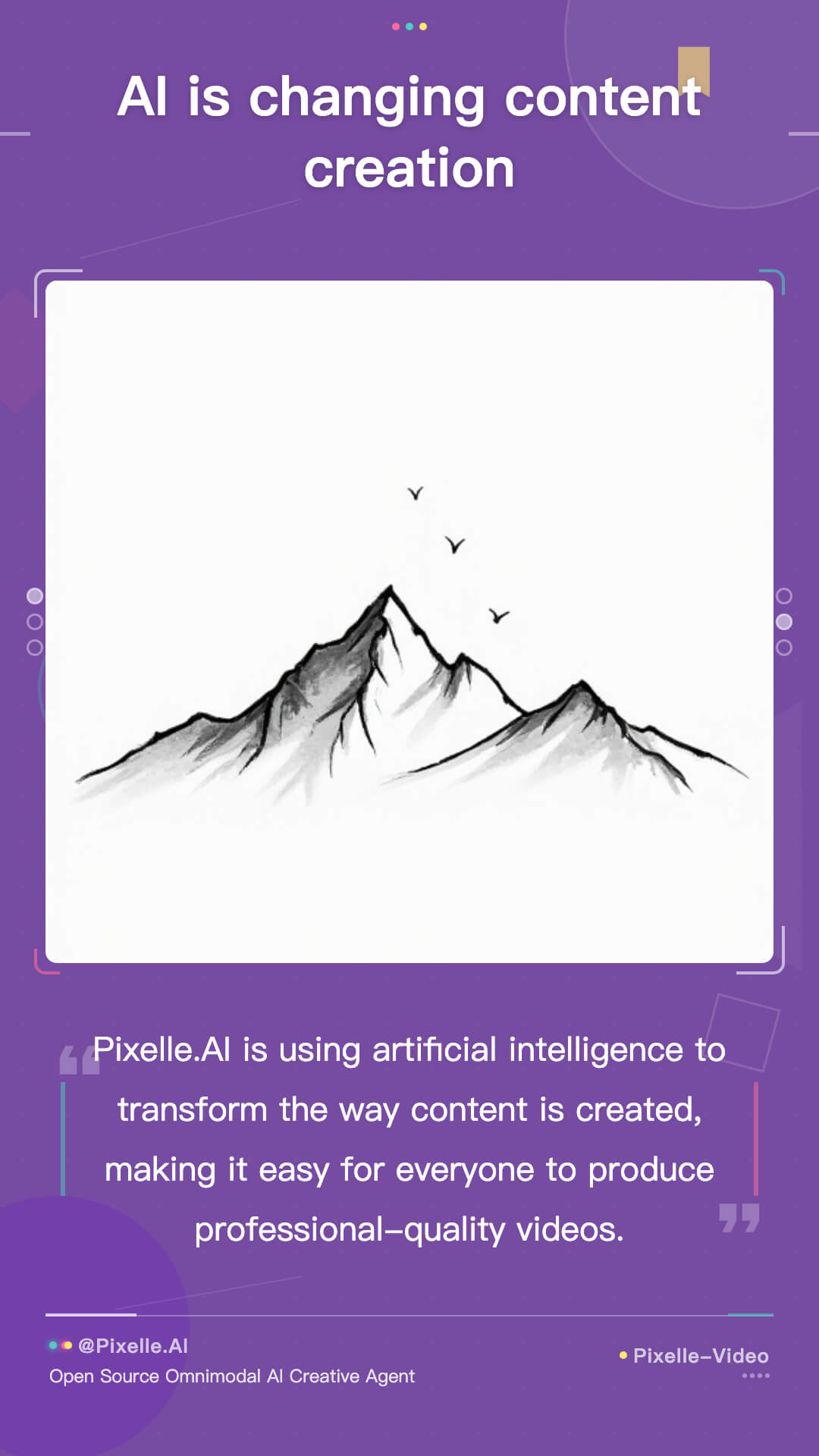
Modern minimalist style, suitable for business and tech content
-
Neon
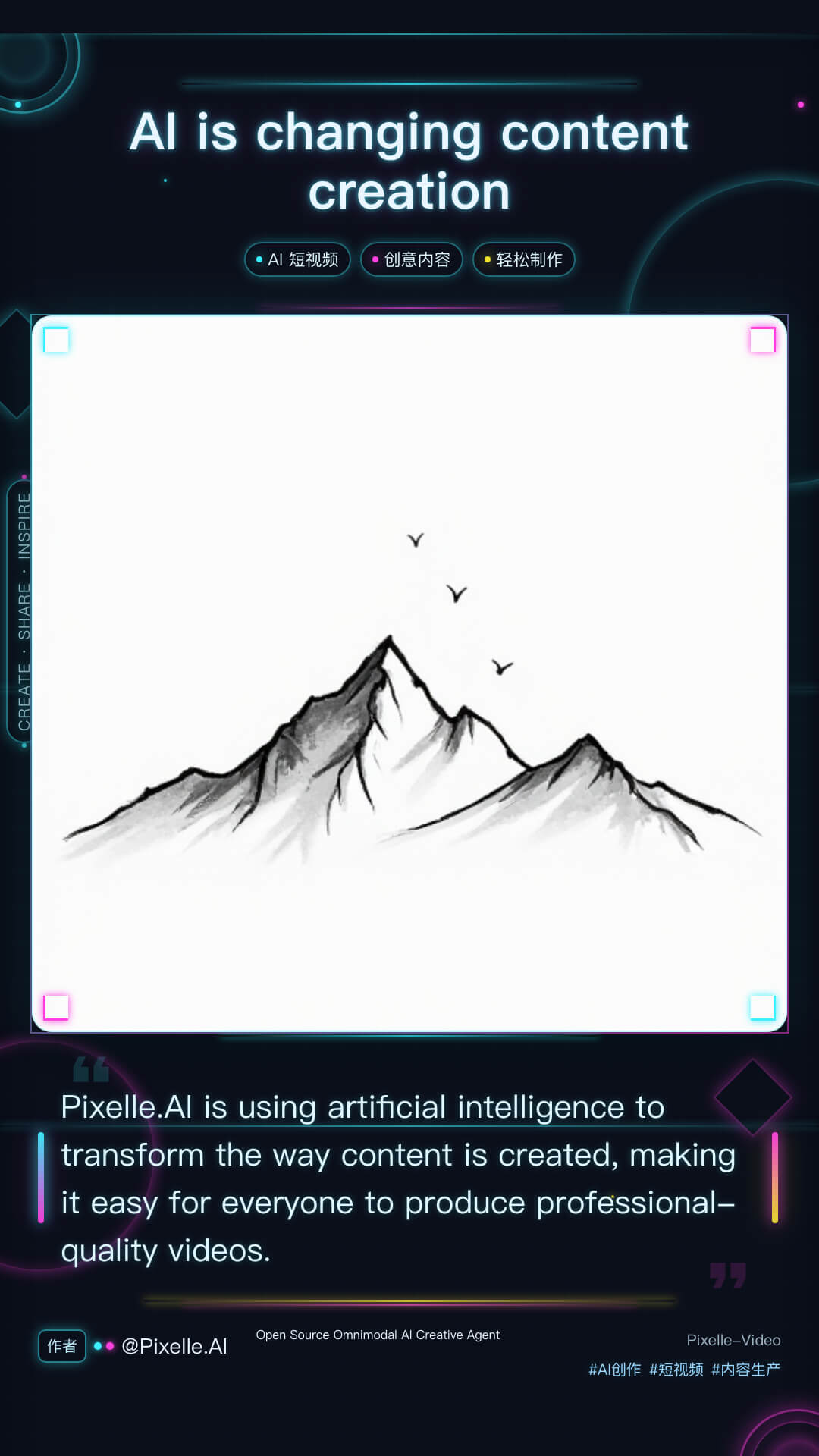
Neon style, suitable for fashion and trendy content
-
Psychology Card
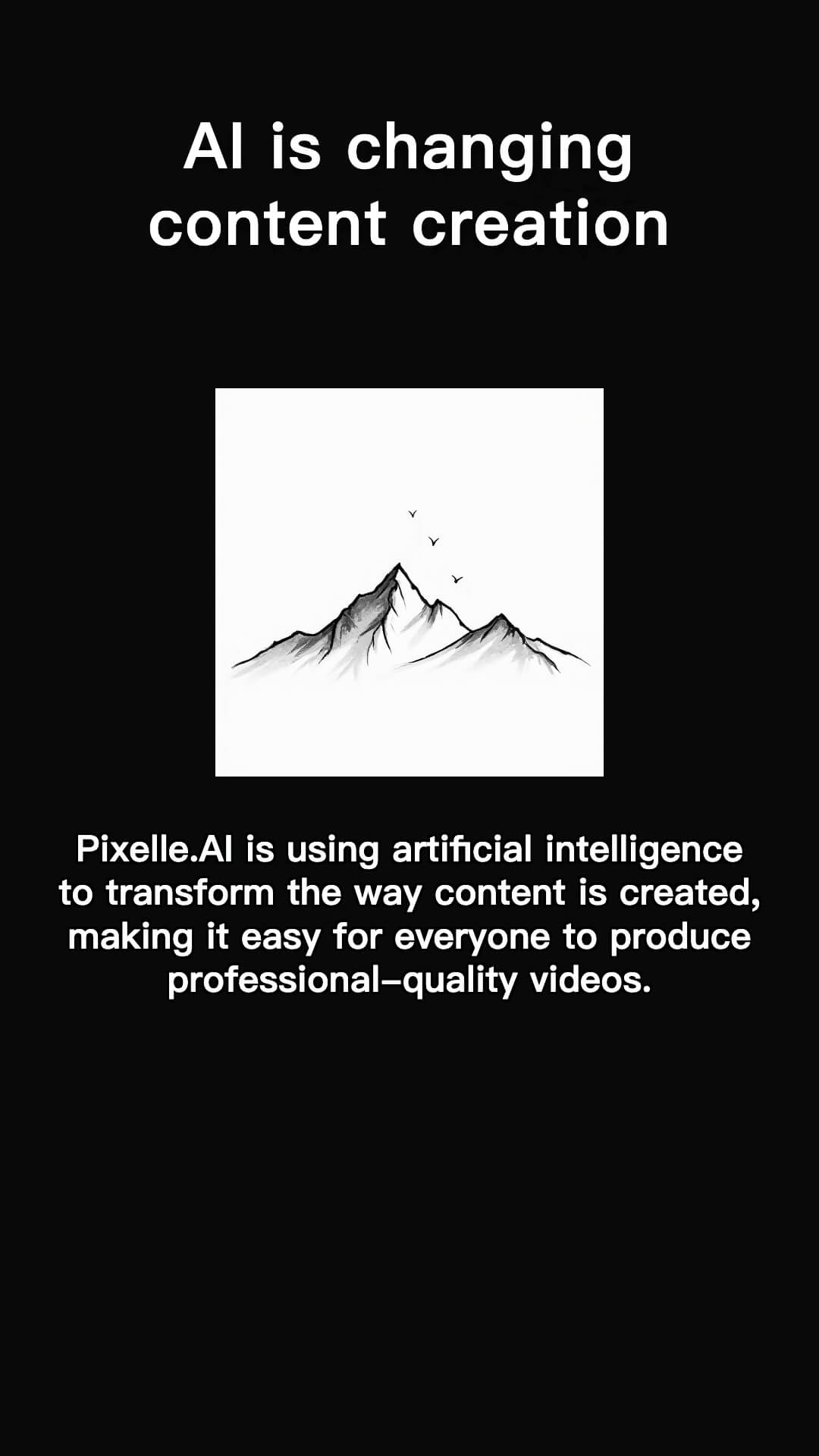
Psychology card style, suitable for knowledge popularization
-
Purple
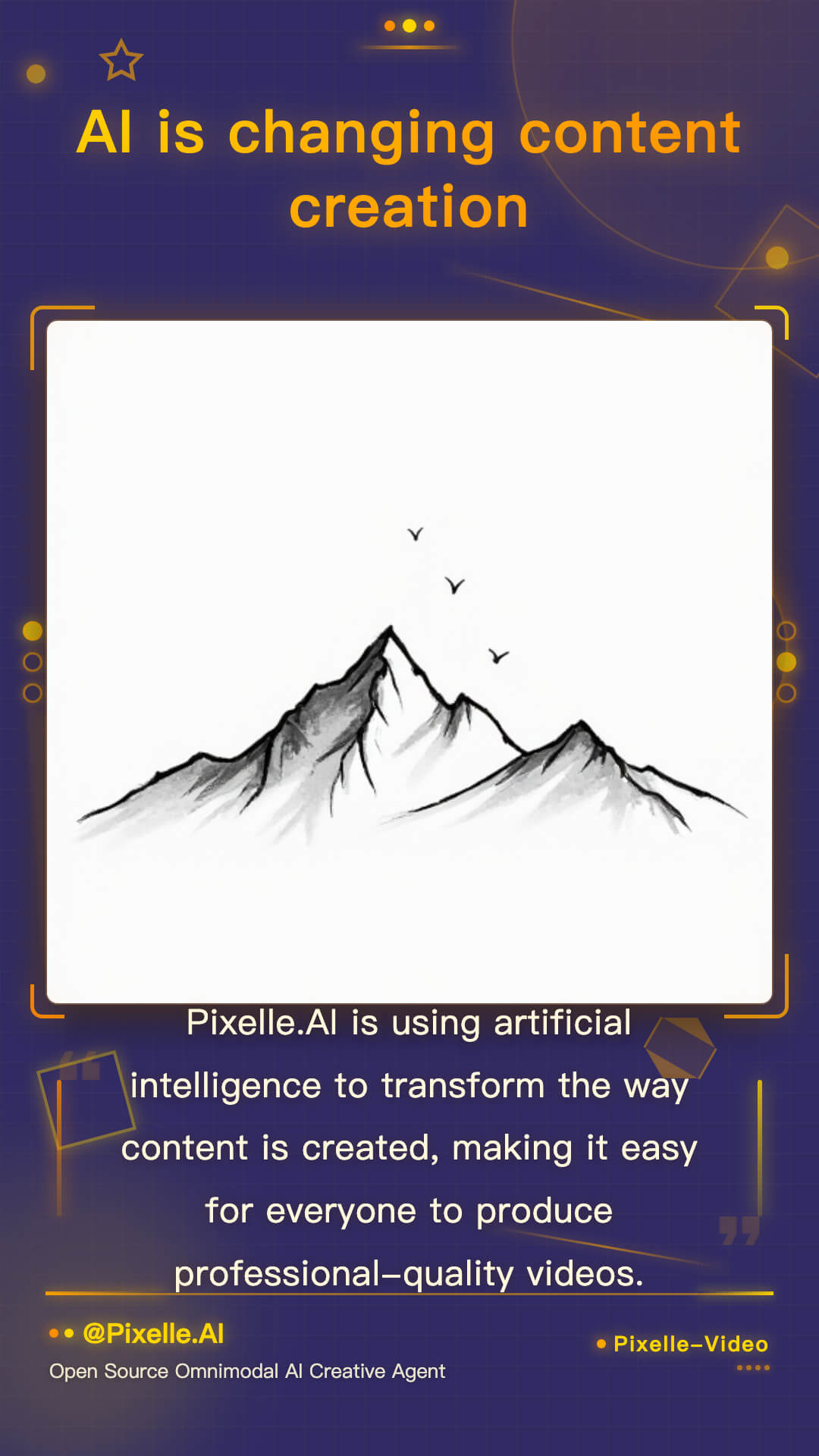
Purple theme, suitable for dreamy and mysterious styles
-
Satirical Cartoon
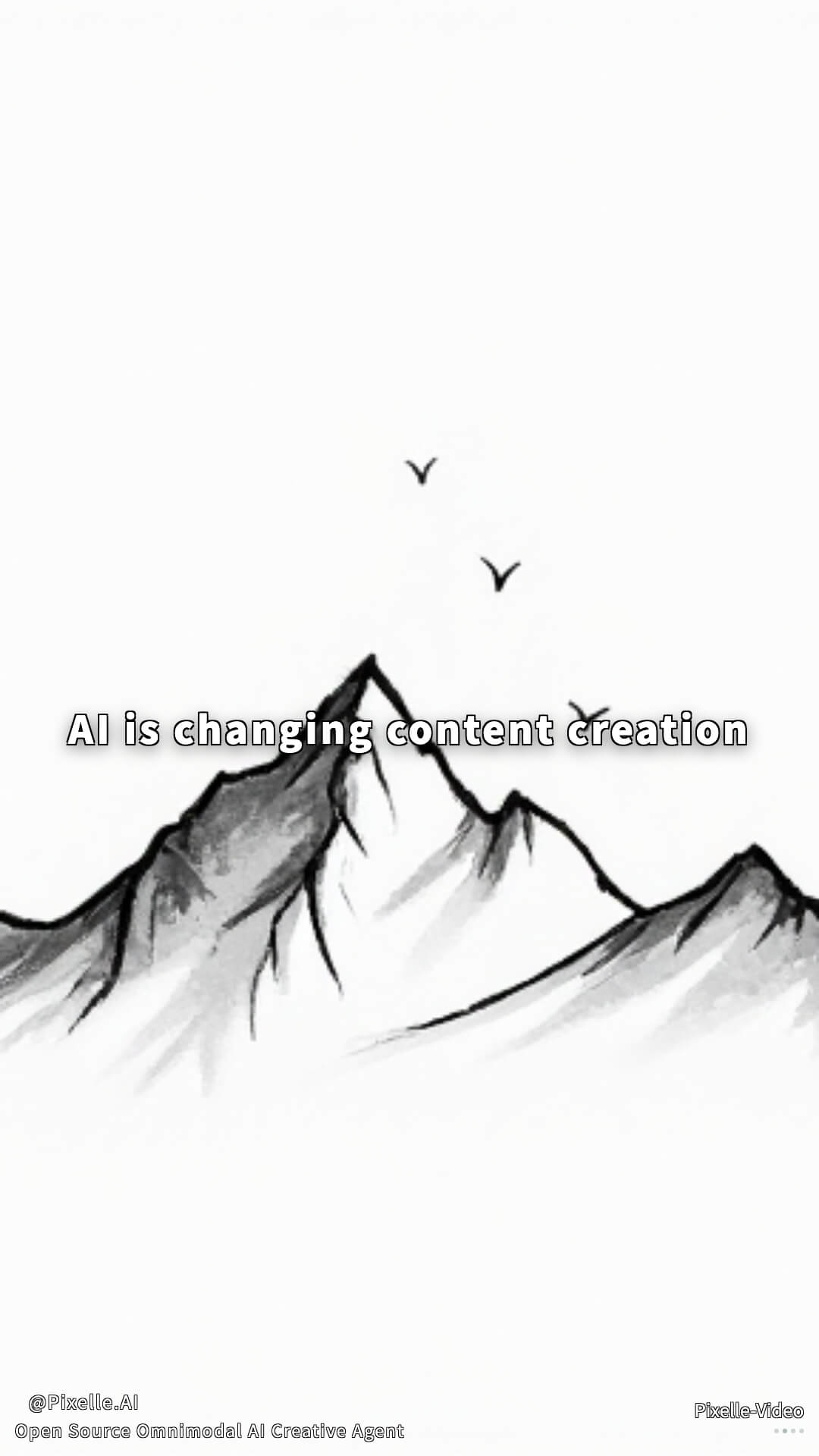
80s satirical cartoon style for spiritual tales
-
Simple Black Background
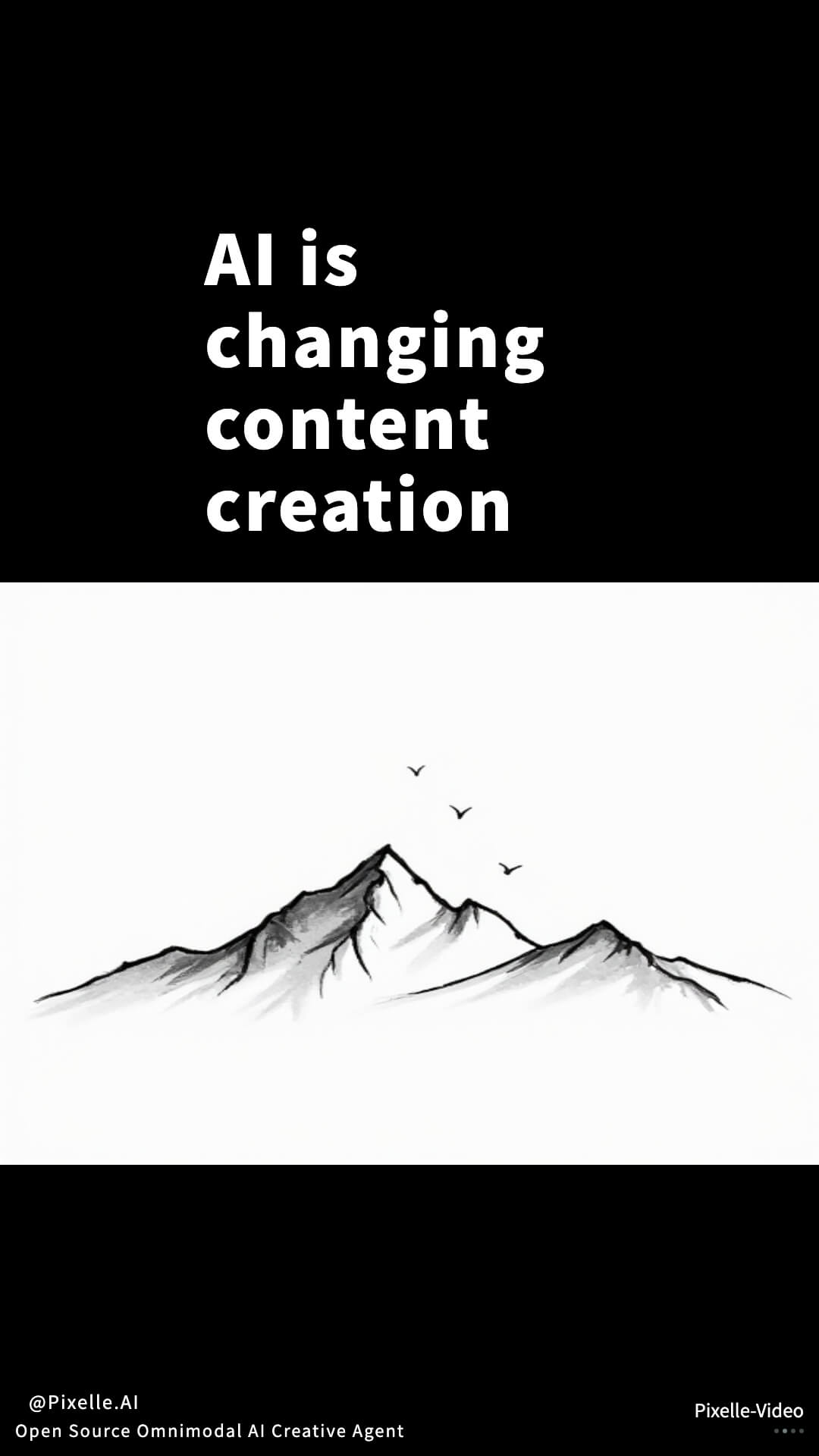
Simple black background, suitable for inspirational content
-
Simple Line Drawing
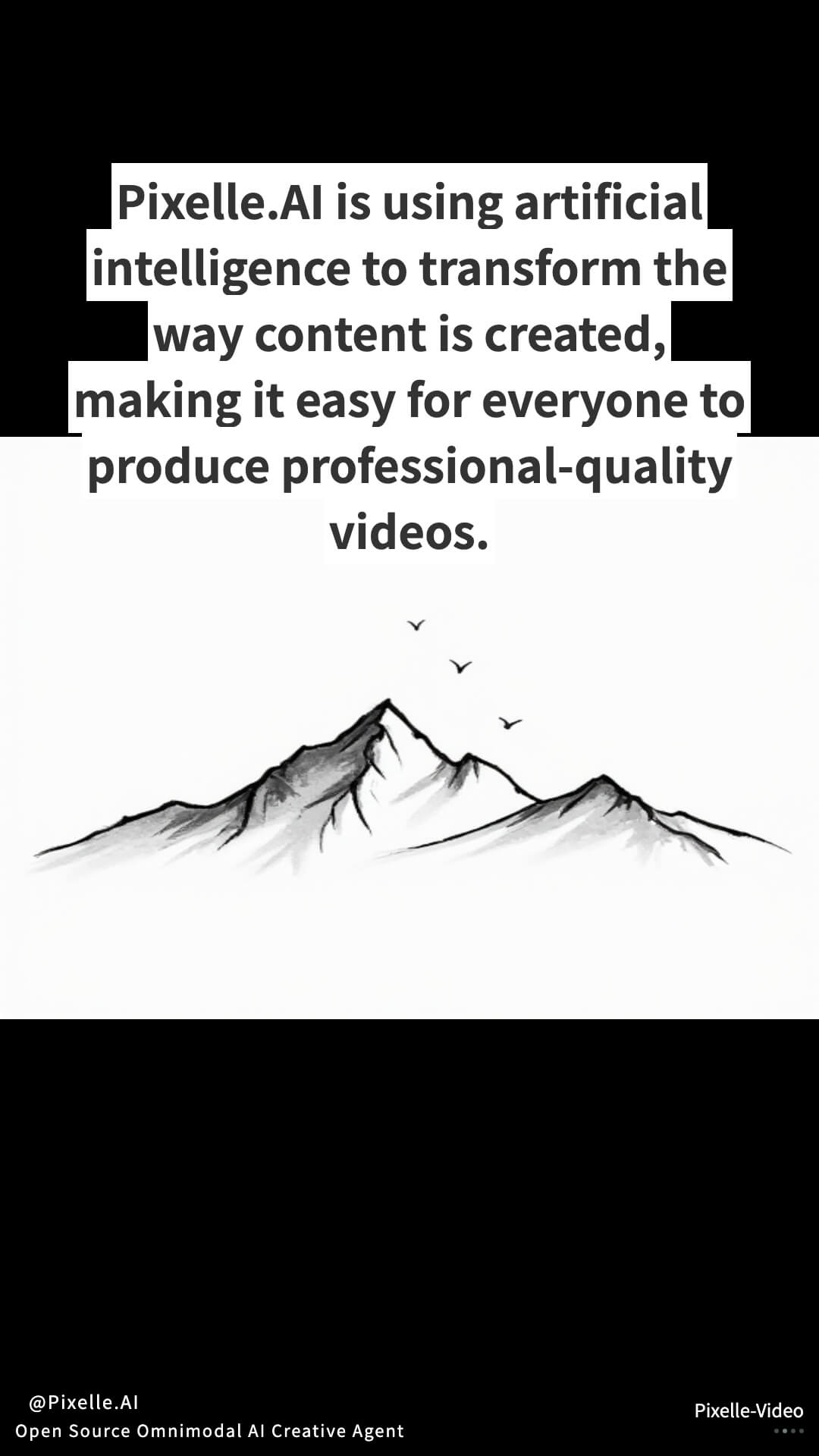
Simple line drawing style for cognitive growth content
-
Book
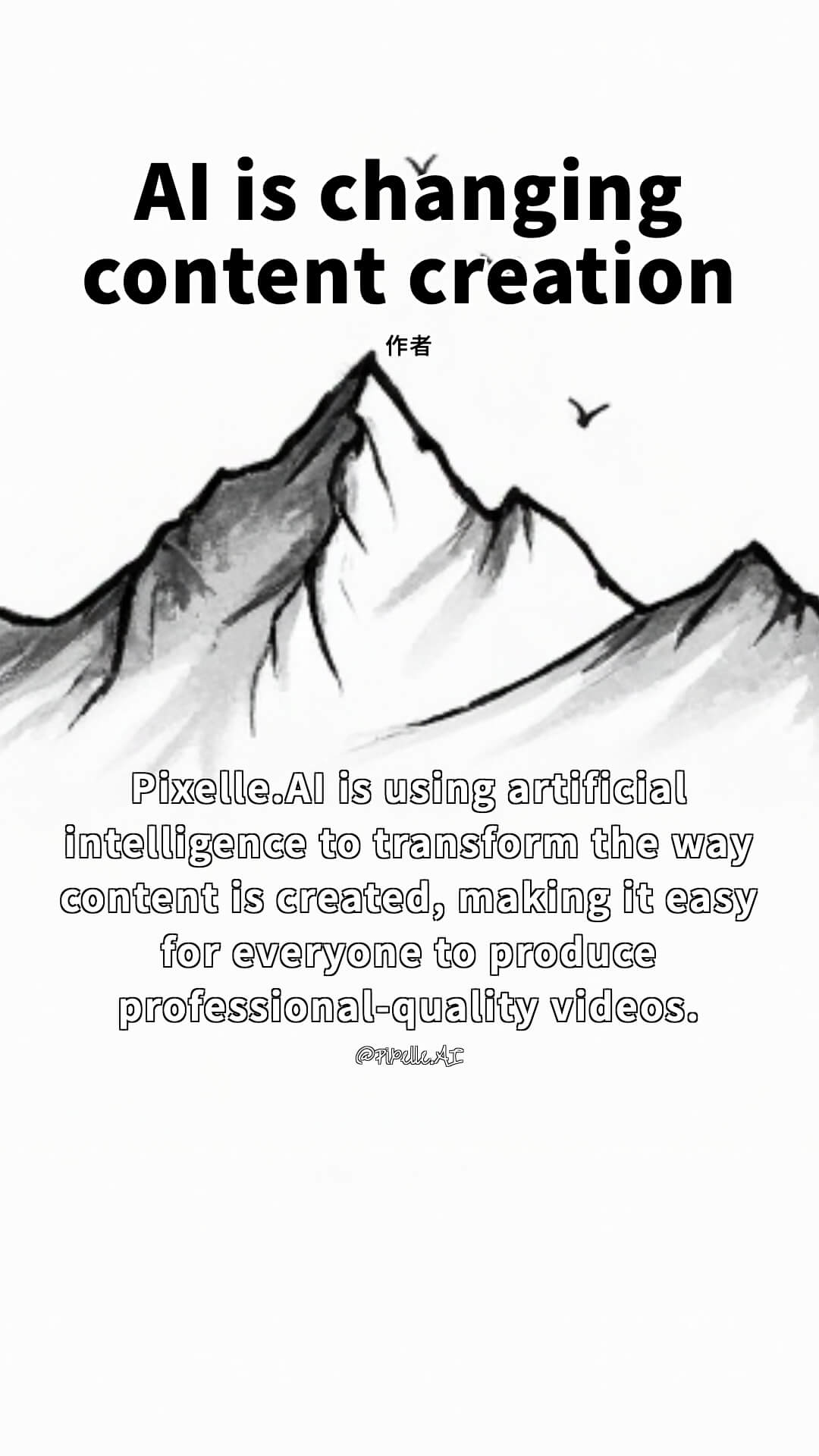
Book style, suitable for book lists
-
Long Text
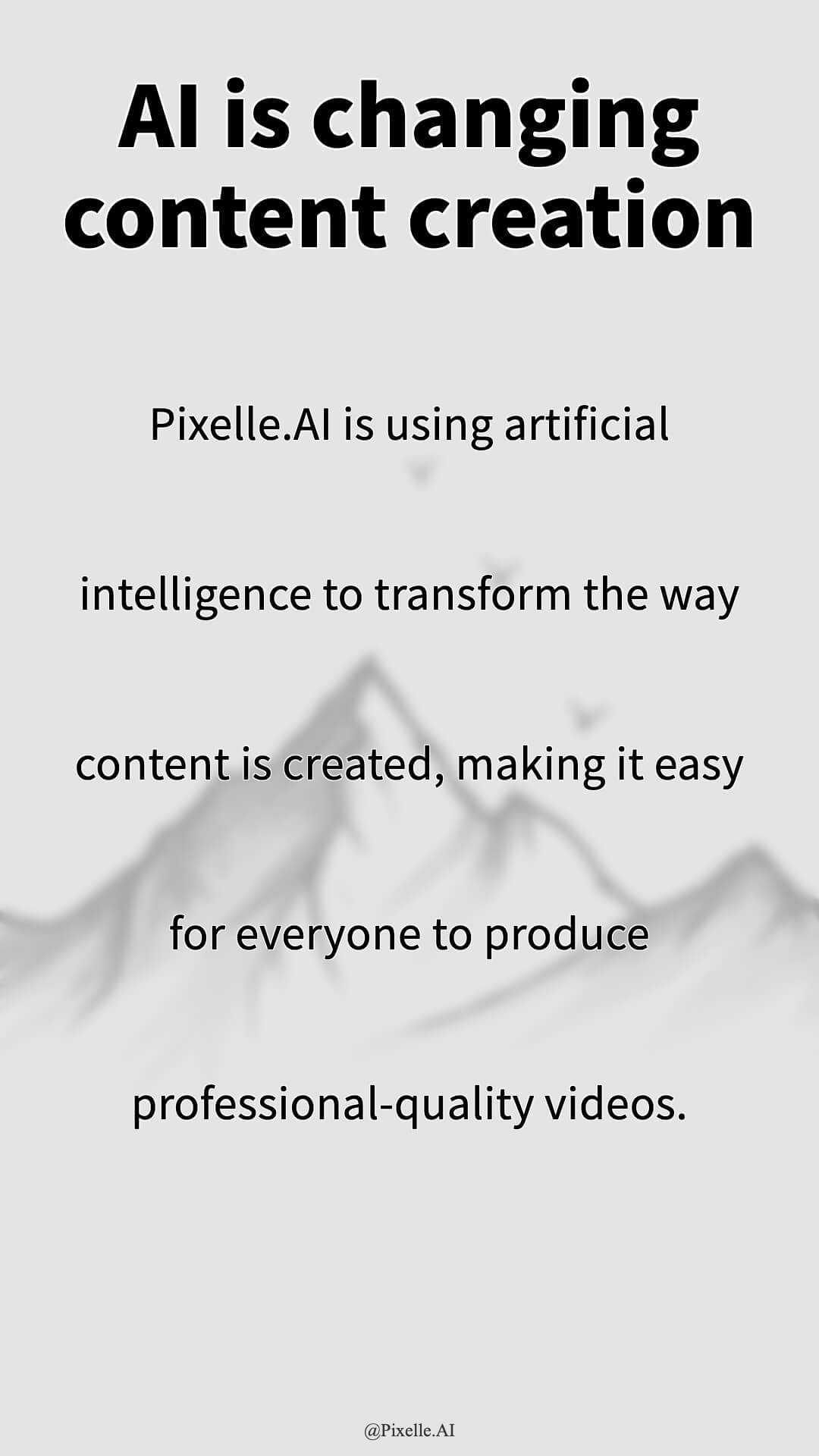
Long text style, suitable for inspirational content
-
Excerpt
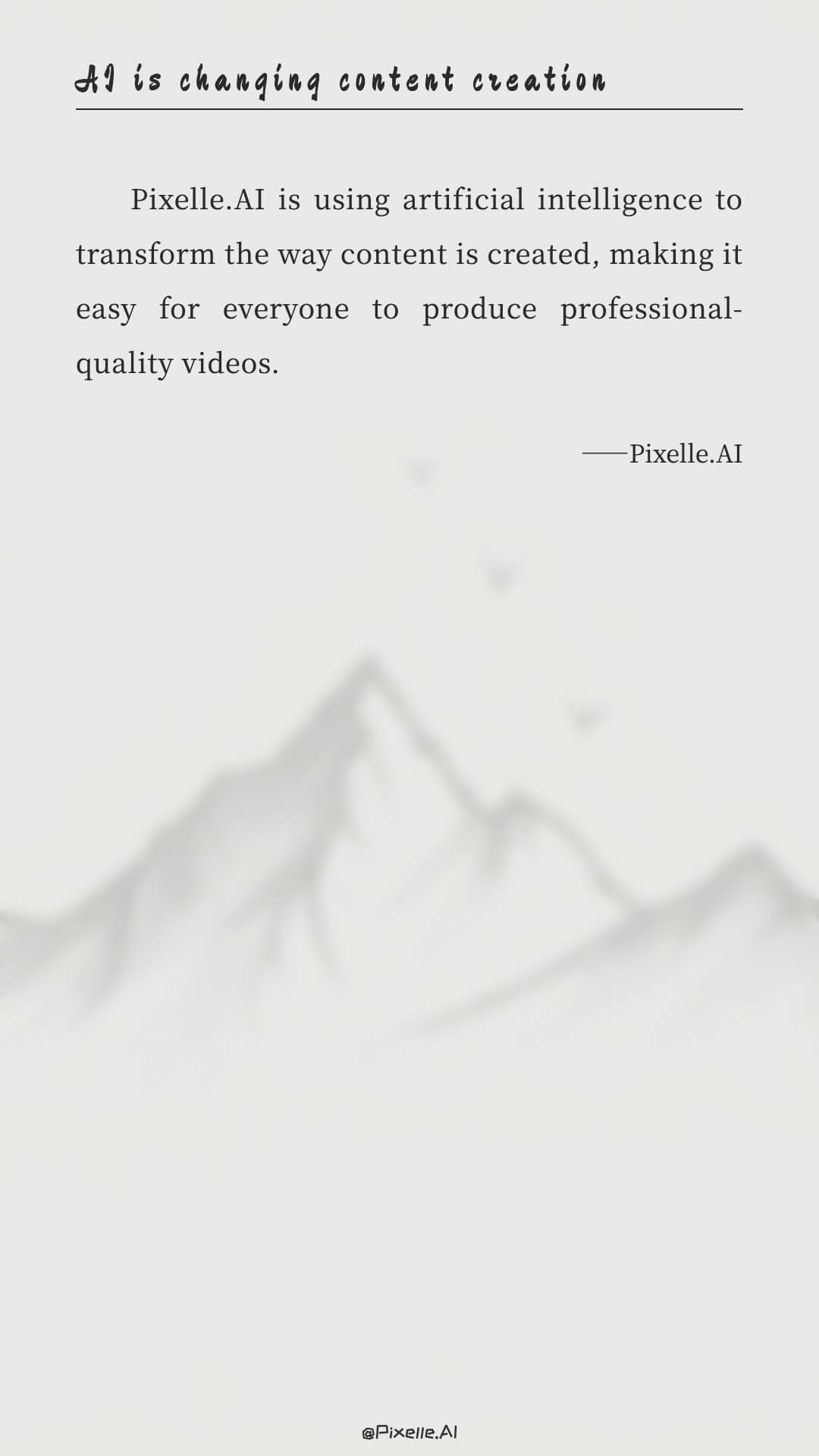
Excerpt style, suitable for quotes and book excerpts
-
Health Preservation

Health preserving tips, suitable for wellness explainers.
-
Life Insights
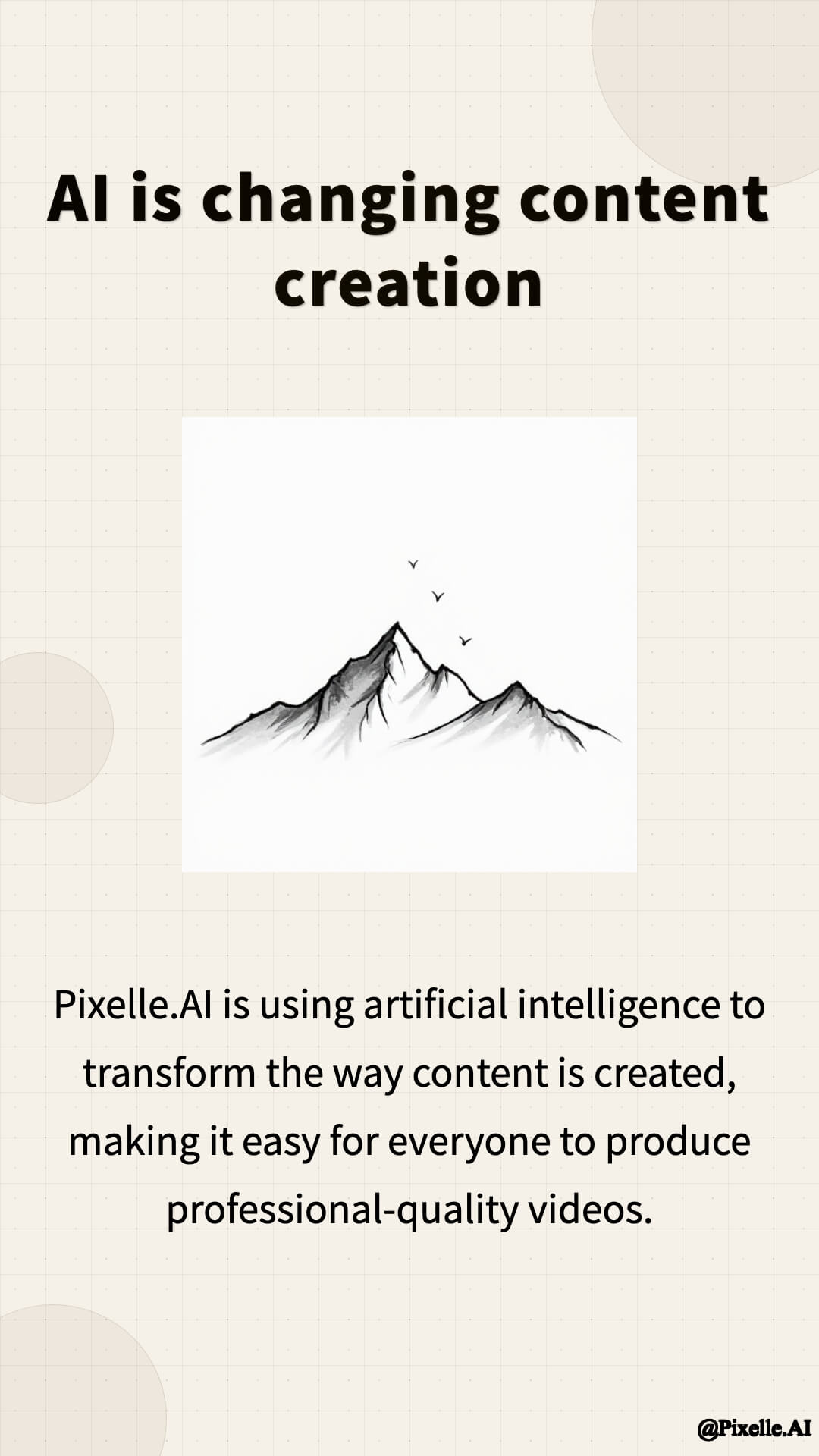
Life insights, conveying warmth and strength
-
Full
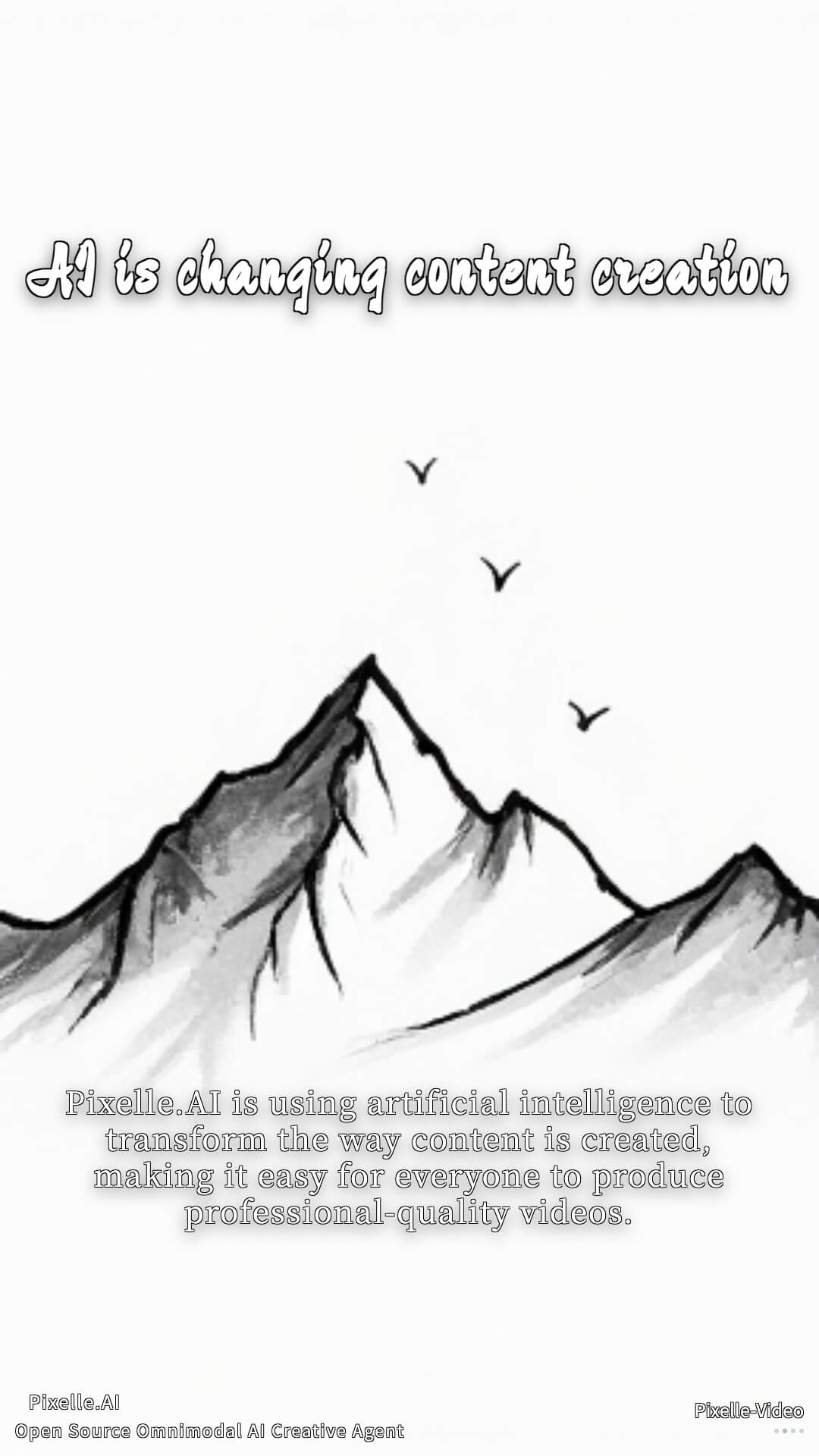
Full screen display, suitable for book lists
-
Healing
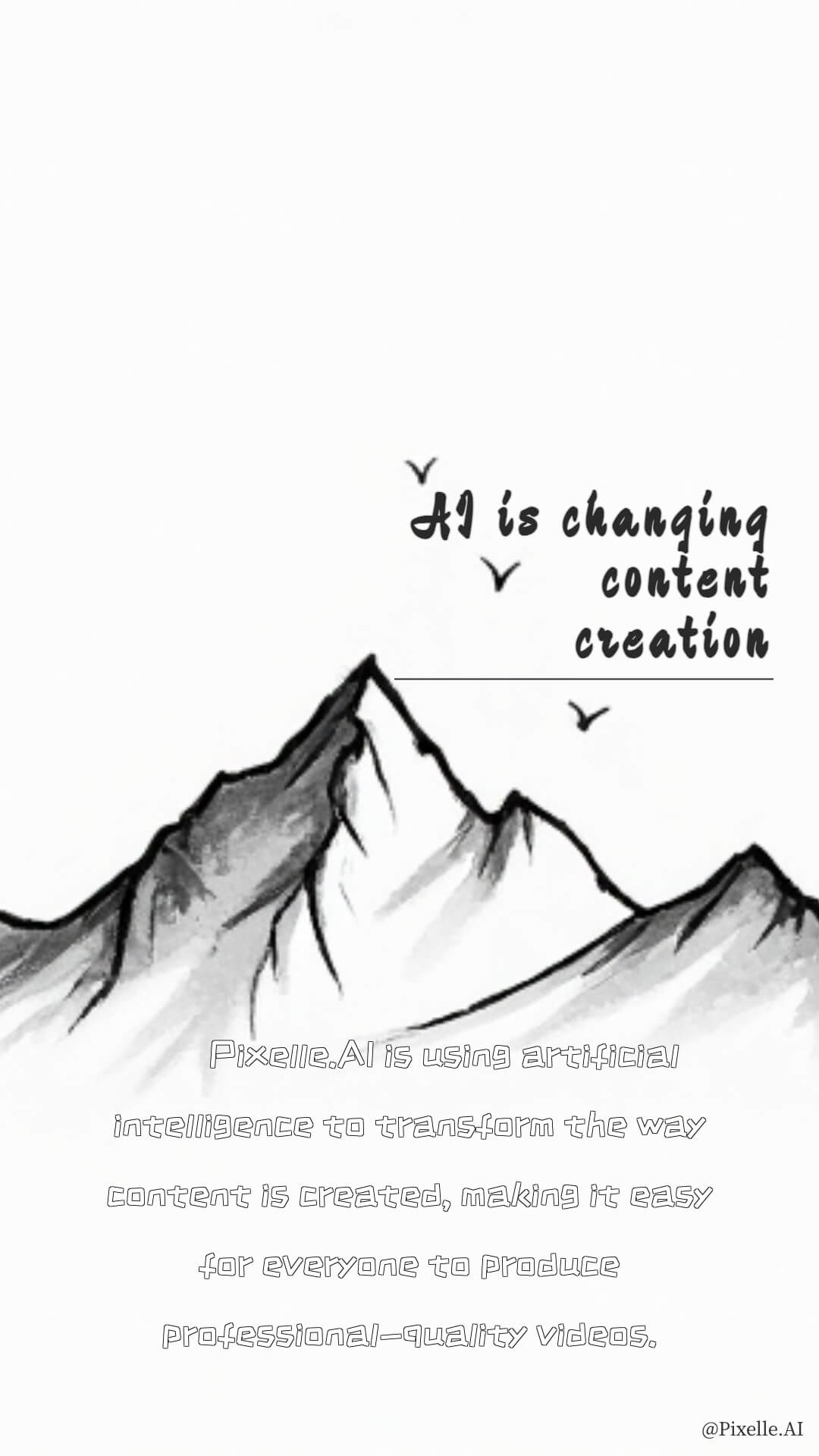
Healing style, suitable for therapeutic content
-
Video_Default
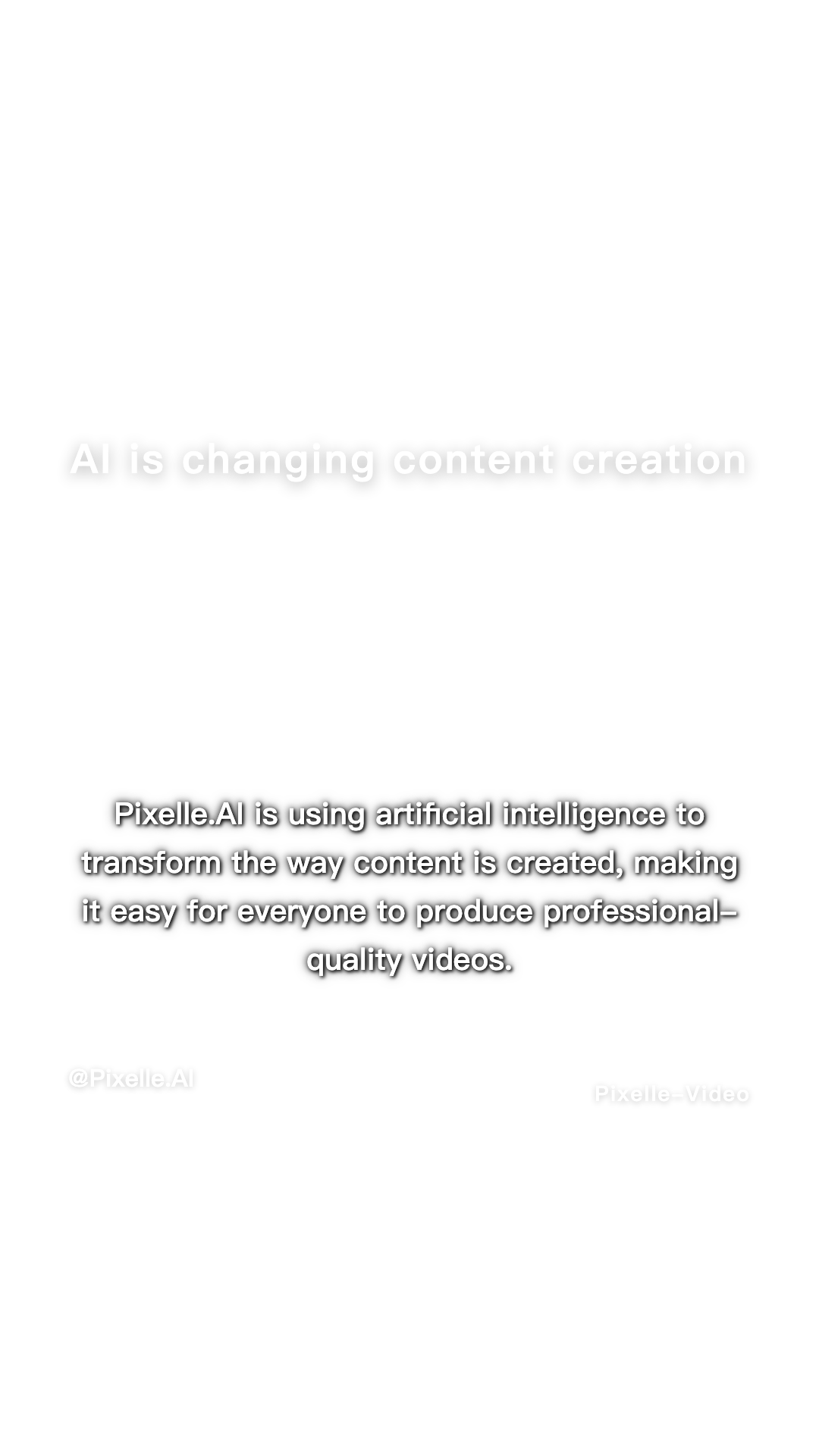
Default dynamic template
-
Video_Healing
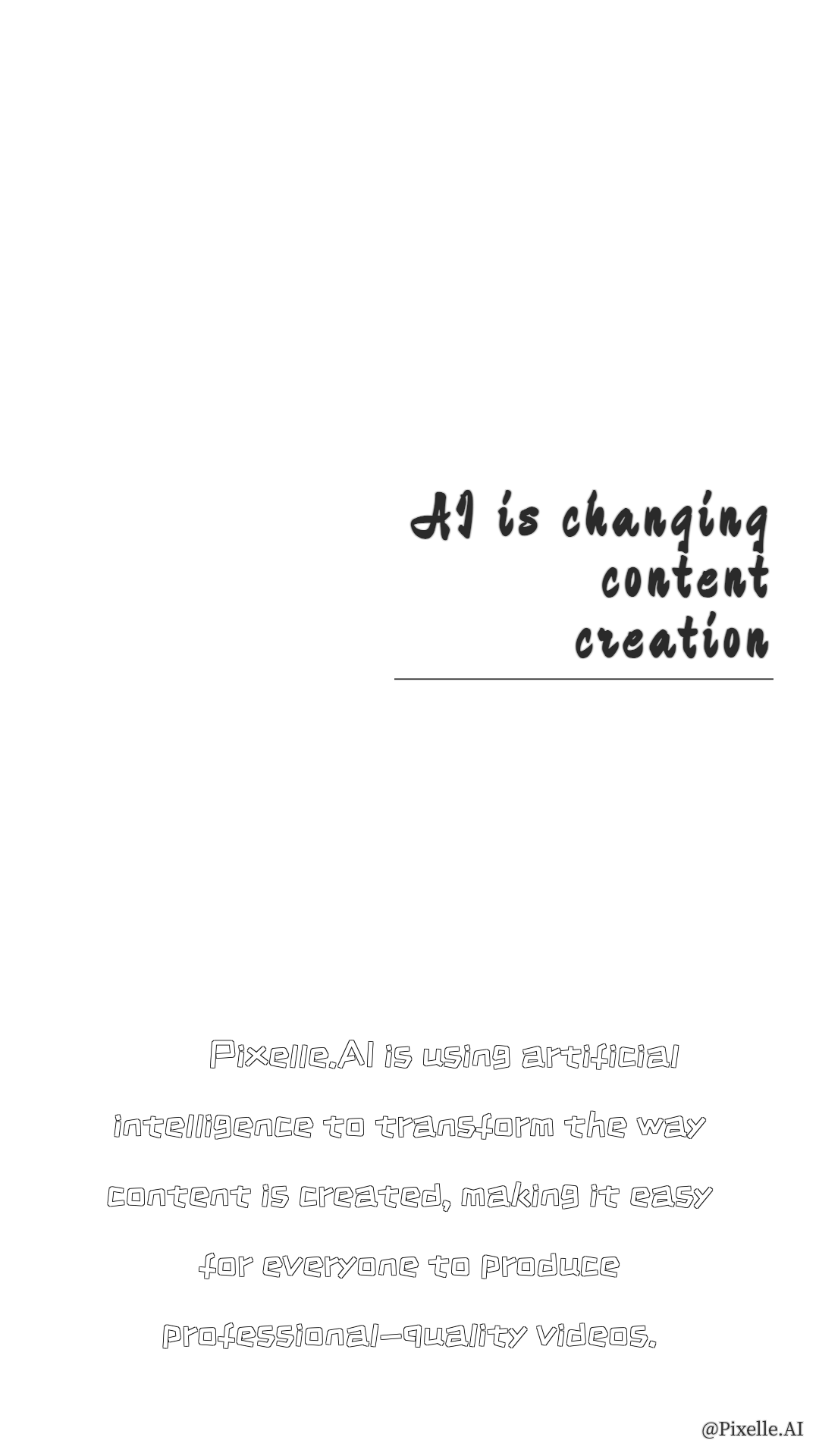
Healing dynamic template
Landscape Templates (1920x1080)
Suitable for YouTube, Bilibili, and other video platforms.
-
Ultrawide Minimal
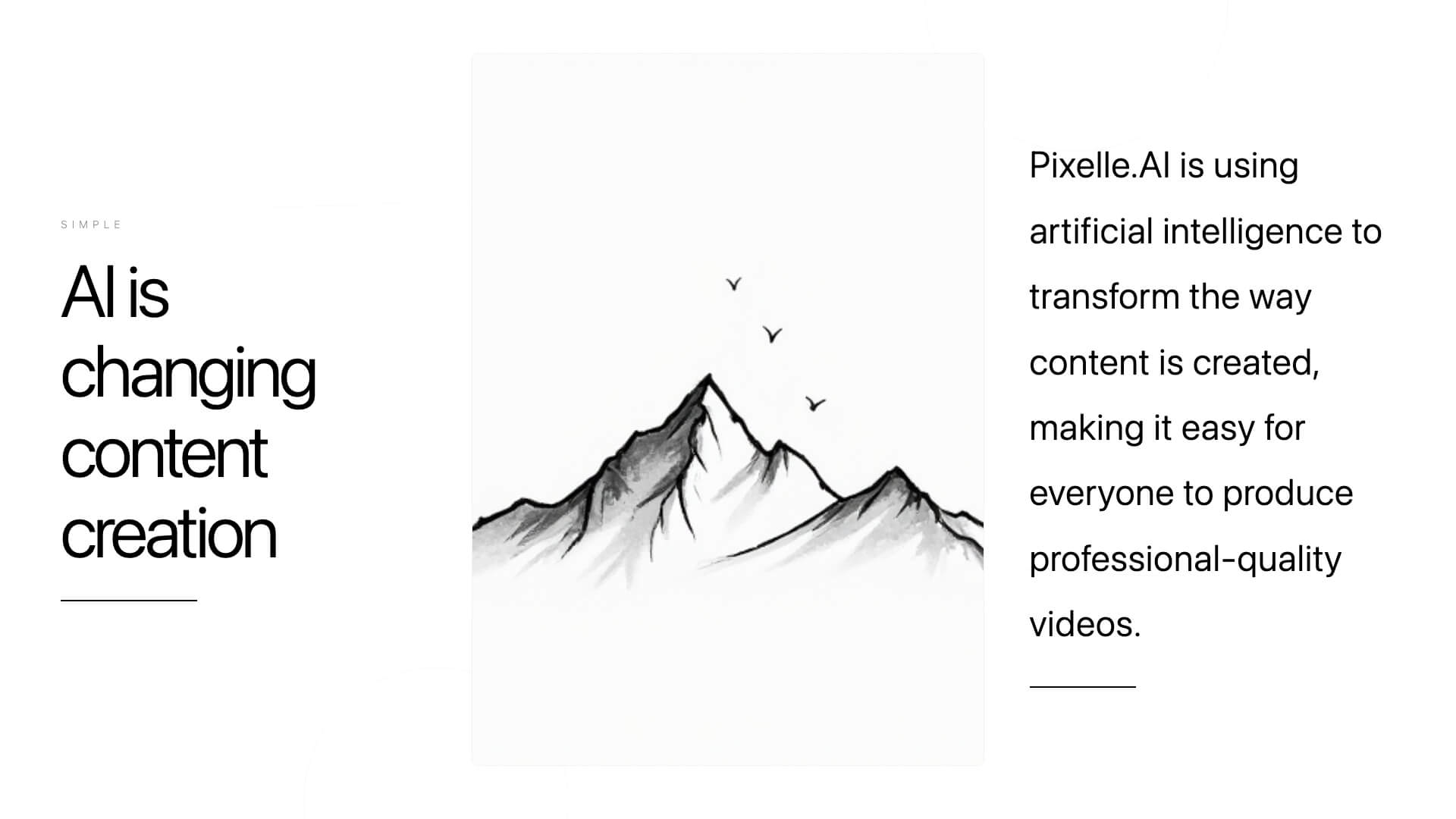
Ultrawide minimalist style, suitable for desktop viewing
-
Wide Darktech
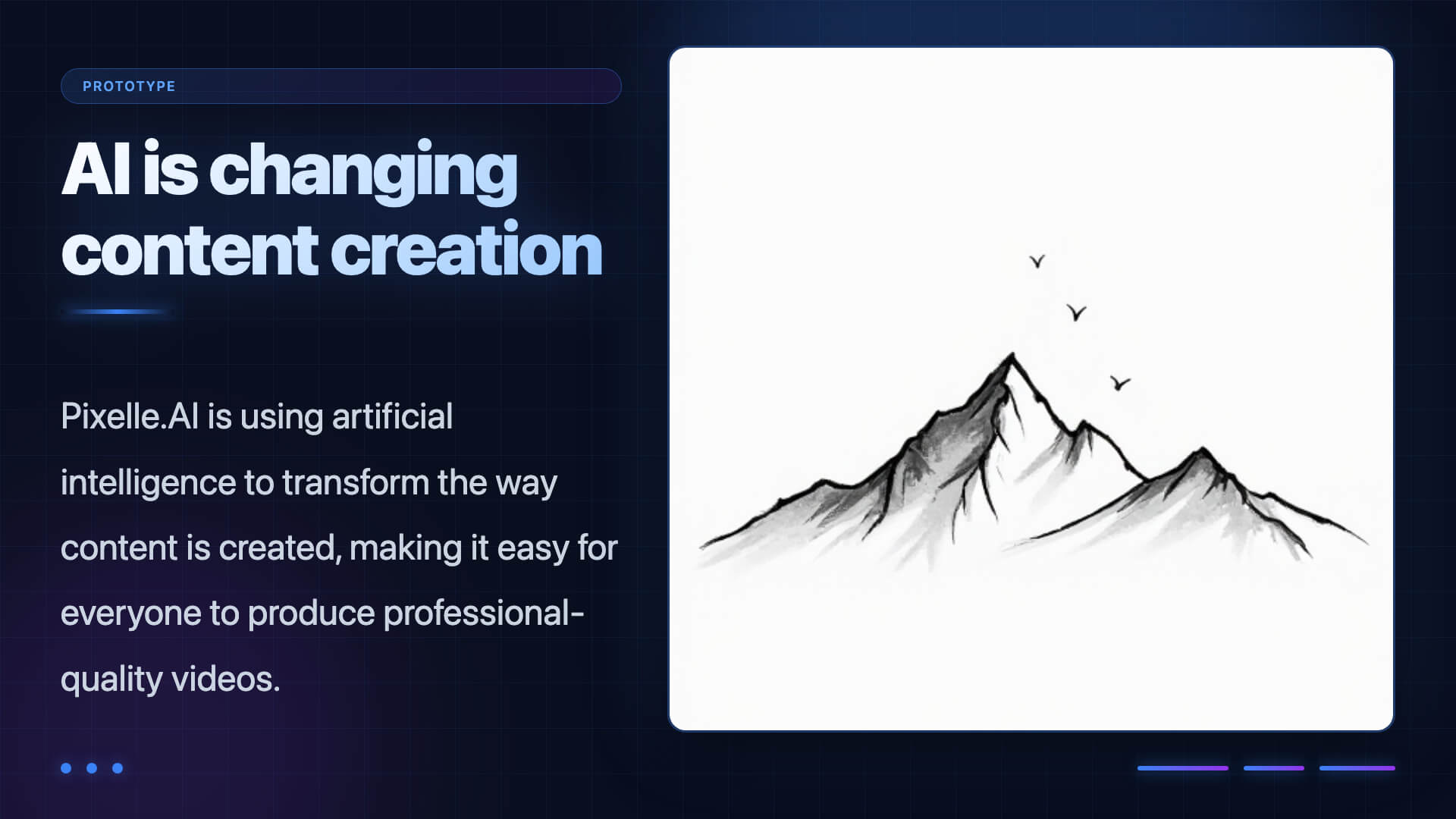
Dark tech style, suitable for technology and gaming content
-
Film
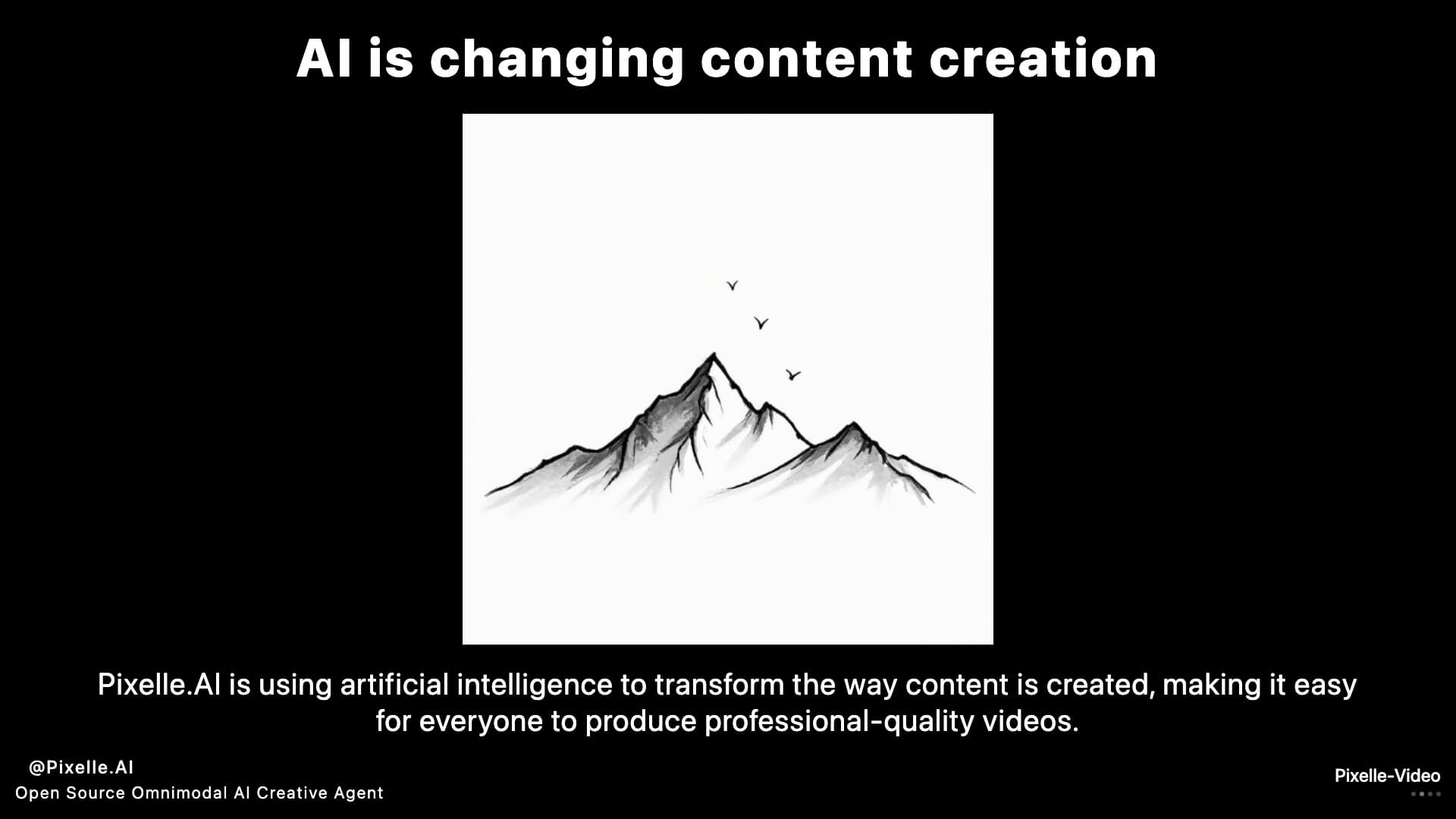
Film style, immersive experience
-
Full
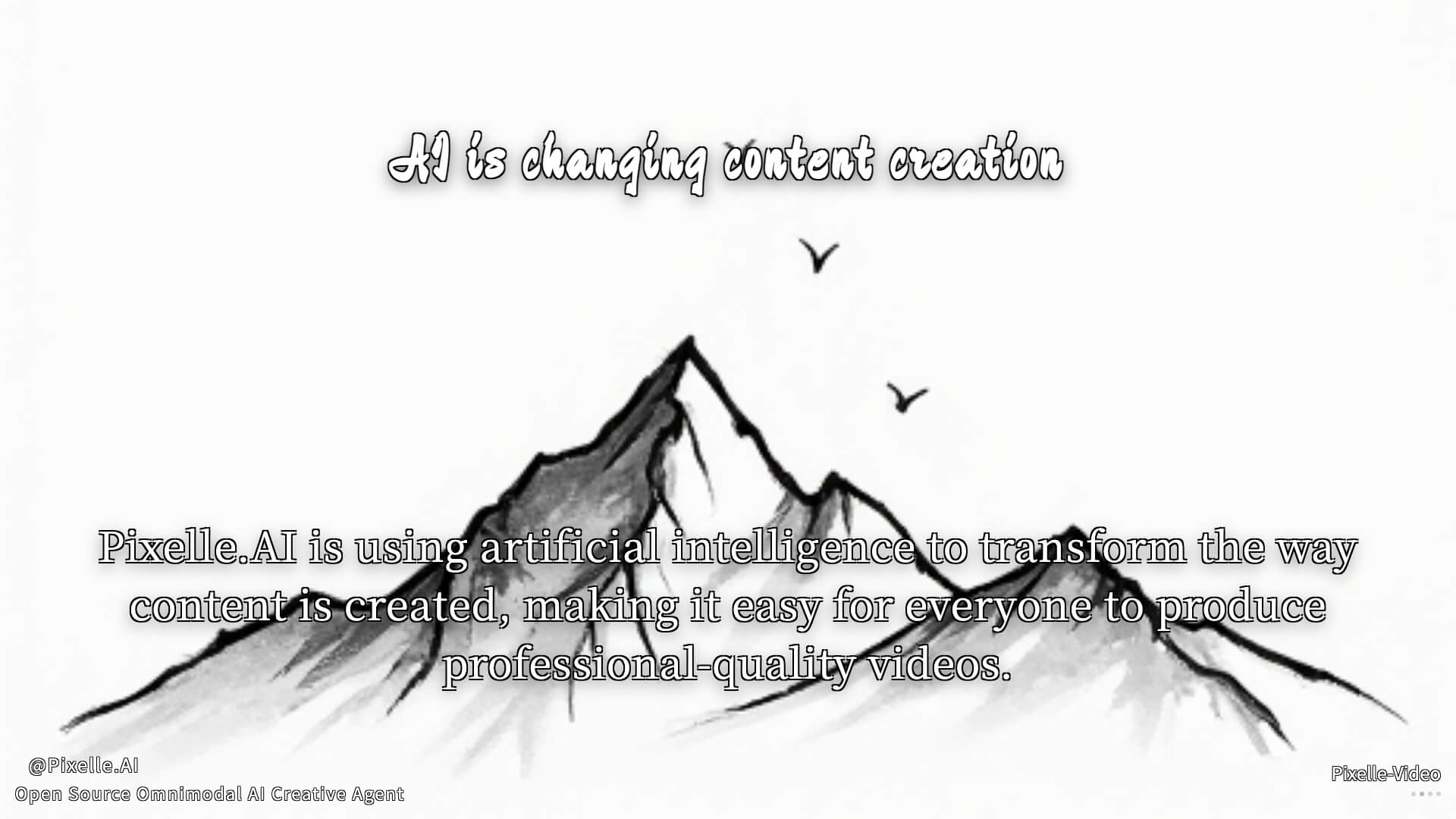
Full screen display, suitable for book lists
-
Book

Book style, suitable for book lists
Square Templates (1080x1080)
Suitable for Instagram, WeChat Moments, and other platforms.
-
Minimal Framed
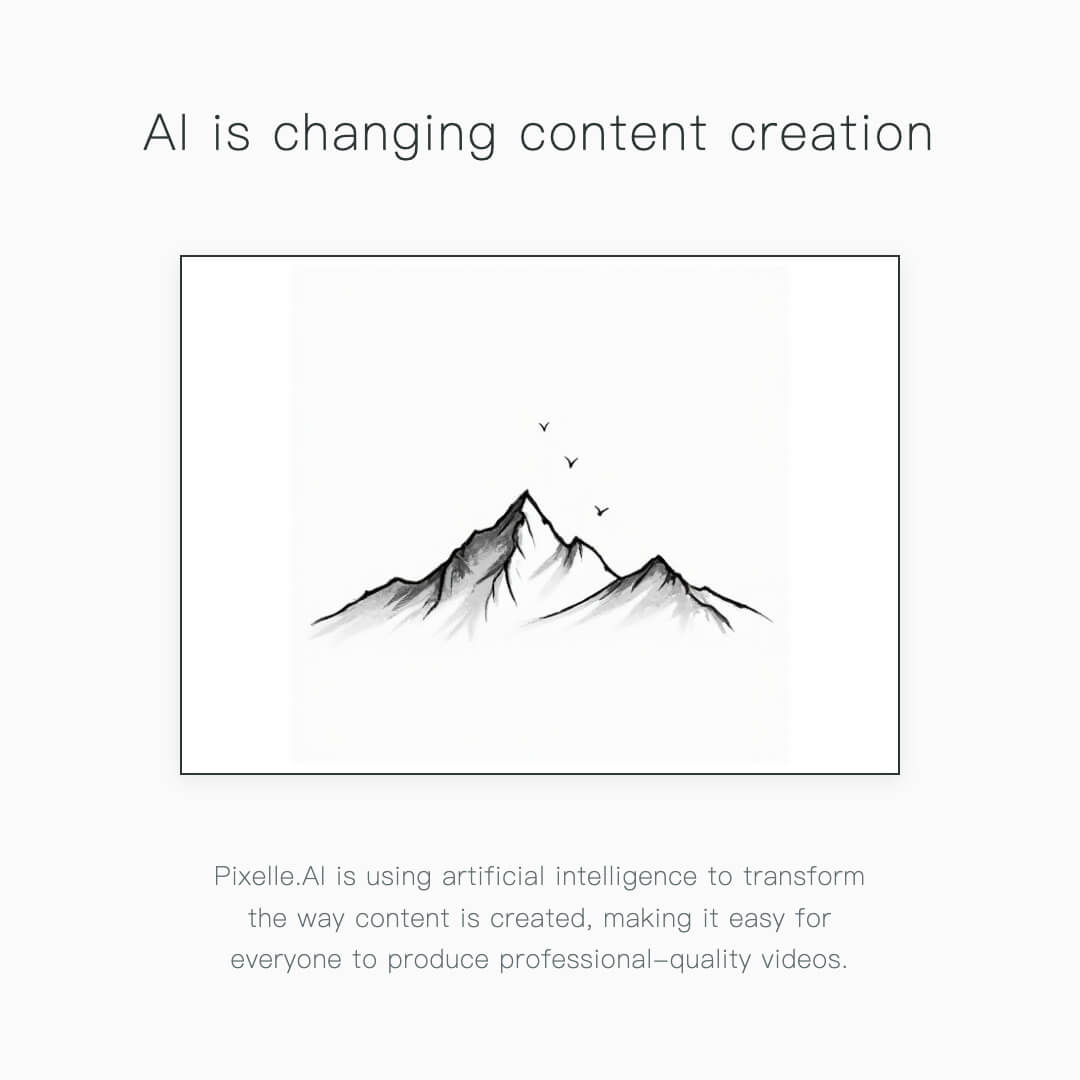
Minimalist framed style, suitable for social media sharing
Template Naming Convention
Templates follow a unified naming convention to distinguish different types:
static_*.html: Static templates- No AI-generated media content required
- Pure text style rendering
-
Suitable for quick generation and low-cost scenarios
-
image_*.html: Image templates - Uses AI-generated images as background
- Invokes ComfyUI image generation workflows
-
Suitable for content requiring visual illustrations
-
video_*.html: Video templates - Uses AI-generated videos as background
- Invokes ComfyUI video generation workflows
- Creates dynamic video content with enhanced expressiveness
Template Structure
Templates are located in the templates/ directory, grouped by size:
templates/
├── 1080x1920/  # Portrait
│   ├── static_*.html   # Static templates
│   ├── image_*.html    # Image templates
│   └── video_*.html    # Video templates
├── 1920x1080/  # Landscape
│   └── image_*.html    # Image templates
└── 1080x1080/  # Square
    └── image_*.html    # Image templates
Creating Custom Templates
Steps
- Copy an existing template file from the
templates/directory - Modify HTML and CSS styles
- Save to the corresponding size directory with
.htmlextension - Use the new template name in configuration or Web interface
Template Variables
Templates use {{name}} placeholders (not Jinja2). Write them without spaces
inside the braces: {{title}} is filled, {{ title }} is left as it is.
{{title}}- Video title (optional){{text}}- Current scene text content{{image}}- Current scene image (if any)
A template can declare its own parameters, which the Web interface shows as inputs
and the API accepts in template_params:
{{name}}/{{name=default}}- text{{name:number=72}}- number{{name:color=#764ba2}}- color{{name:bool=false}}- true/false
Values are inserted as plain text. In title, text and text-parameter values,
&, <, >, " and ' are HTML-escaped, so markup in them shows as text.
In image (a URL), quotes, <, >, \, `, parentheses and whitespace are
percent-encoded. Defaults written in the template itself are inserted unchanged.
To show line breaks in text, use white-space: pre-wrap in the template CSS.
Typed parameters are checked against their type. A value that does not match is replaced by the placeholder's default (or an empty string when it has none):
| Type | Accepted values | Inserted as |
|---|---|---|
number |
a number, or digits with an optional sign and decimal part (64, -1.5) |
the number, without a unit: write the unit in the template ({{size:number=72}}px) |
color |
#rgb, #rgba, #rrggbb, #rrggbbaa, rgb()/rgba()/hsl()/hsla() with numbers only, or a CSS color name (red) |
the color as given |
bool |
true/false, 1/0, yes/no, on/off |
true or false |
A type declared on one placeholder applies to every placeholder with the same name.
Example Template
<!DOCTYPE html>
<html>
<head>
    <style>
        body {
            width: 1080px;
            height: 1920px;
            margin: 0;
            background: linear-gradient(135deg, #667eea 0%, #764ba2 100%);
            display: flex;
            align-items: center;
            justify-content: center;
            font-family: 'Arial', sans-serif;
        }
        .content {
            text-align: center;
            color: white;
            padding: 40px;
        }
        .text {
            font-size: 48px;
            line-height: 1.6;
        }
    </style>
</head>
<body>
    <div class="content">
        <div class="text">{{text}}</div>
    </div>
</body>
</html>
Template Development Tips
1. Responsive Sizing
Ensure the template's body size matches the target video dimensions:
- Portrait:
width: 1080px; height: 1920px; - Landscape:
width: 1920px; height: 1080px; - Square:
width: 1080px; height: 1080px;
2. Text Typography
- Use appropriate font sizes and line heights for readability
- Add shadows or backgrounds to text for better contrast
- Control text length to avoid overflow
3. Image Handling
- Use
object-fit: coverto ensure image filling - Add gradients or overlay layers to improve text readability
- Consider fallback solutions for image loading failures
4. Performance Optimization
- Avoid overly complex CSS animations
- Optimize background image sizes
- Use system fonts or web-safe fonts
More Information
For template development questions, feel free to ask in GitHub Issues.